Database Server Security is a foundational configuration that should be carefully considered during environment design. The associated security roles provide a mechanism for provisioning access to the SQL Table Editor Dashboard Component utilized by certain Solution Exchange solutions, as well as granting users access to content available within the Database Page.
These security properties support role-based provisioning and privilege segregation for database administrators, application administrators, and general users. They control access to Platform, Ancillary, and external database tables and the records in the Database Page and to SQL Table Editor content shown in Dashboards. Database Security can be configured and applied to all databases in each OneStream environment.
-
Internal OneStream Database Server
-
External or Custom Database Server Connections
Database Server Security Exposure
-
OneStream System Tools Database Page: Provides access to OneStream database tables to support data management, troubleshooting, and system monitoring
-
OneStream Dashboard Component SQL Table Editor: The SQL Table Editor displays SQL table data in a dashboard grid where you can view, filter, sort, and update table data. It also validates access using the Database Server Ancillary Table security properties
The Security properties allow provisioning of the database content to be segregated across users in the OneStreamenvironment.
For example, you can:
-
Segregate duties of the Database Administrator from the Application Administratorr
-
Enable power users to access the Database Page, but restrict them from accessing sensitive data stored in a solution table
-
Segregate access of the OneStream Administrator, or other groups, from viewing or editing database table content presented using the SQL Table Editor in a Dashboard
Provision Database Server Security Roles
OneStream Security Groups are used to provision users to each of the Database Server Security roles. The group assignment field supports a custom syntax that allows provisioning logic to be scoped to individual tables or logically associated groups of tables.
The custom syntax option can be used to segregate table access within each type of role. For example, within the Platform tables, a group of users may be granted access to view Member tables but be restricted from accessing Data Record tables.
By default, the OneStream Administrators security group does not have permission to the Database Server Security properties; therefore, members must be explicitly provisioned unless access segregation is required.
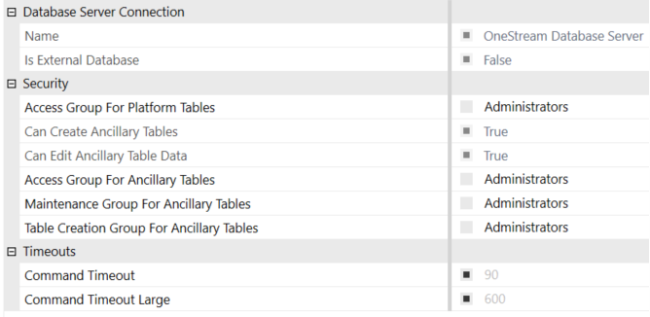
Provision Groups
Provisioning of Database Server connections is performed using the System Configuration page.
The System Configuration page initially shows the default security role group defined in the Application Server Configuration file. To override this setting, deselect the role and enter a OneStream Security Group in the text box.
The assignment of Groups to the Security Roles can be designed to grant complete access or segregated using table names, wildcard characters, and contains characters in a comma delimited list of definitions associated to valid Security Groups.
-
When the Database Page, Tools, or Data Records utility is required, you must have access to all Platform Tables on the Access Group for Platform Tables property
-
Nested Groups must be used to provision Groups needing to share the same table access. For example: “*=Administrators, *=PlanningAdmins” is not valid.
-
Syntax Examples: * = Security Group, Table* = Security Group, *Table* = Security Group
| Security Group Assignment Syntax | Results |
|---|---|
| AppAdmins | “AppAdmins” Group provisioned to all tables |
| *=AppAdmins | “AppAdmins” Group provisioned to access all tables |
| *=AppAdmins, Stage*=Integrators | “AppAdmins” Group provisioned to access all tables. “Integrators” Group access restricted to table names starting with “Stage” |
| *=AppAdmins, Stage*=Integrators, *DataRecord*=Nobody | “AppAdmins” Group provisioned to access all tables. “Integrators” Group access restricted to table names starting with “Stage”. Data Record Tables are restricted for everyone |
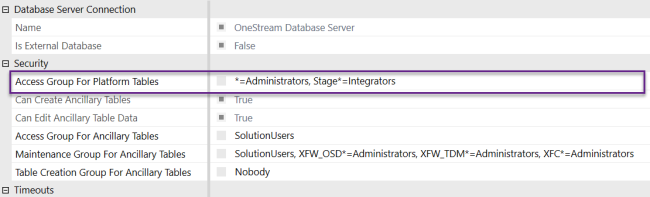
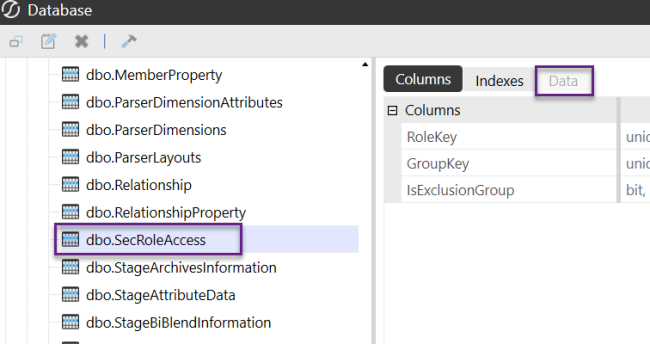
The table names are always visible in the Database Page, however the visibility of content on the Data tab will vary depending upon provisioning.
Security Role Definition
Here, we will define Security Roles.
Access Group for Platform Tables
The Access Group for Platform Tables property applies to core platform tables in the application database. These tables are part of the system architecture and store metadata, transactional data, and system operations.
OneStream Database Server tables are view-only and cannot be edited in the SQL Table Editor.
This property is not supported for external database connections.
- Application Database core Platform tables
- System Database core Platform tables
Ancillary Tables
Ancillary tables are not part of the core Platform schema. They are custom tables created by users or administrators to support business requirements, custom solutions, or Solution Exchange applications. These tables can reside in the Application or System database.
When configuring Database Security Roles for external or custom databases (for example, BI Blend), only Ancillary Security Roles apply to access tables and views in the Database page and SQL Table Editor.
Access Group for Ancillary Tables
The Access Group for Ancillary Tables enables you to view the content of Ancillary tables stored in the Application, System, External or Custom databases using the Database Page or via the SQL Table Editor in a Dashboard.
Maintenance Group for Ancillary Tables
The Maintenance Group for Ancillary Tables is required to enable the Allow Inserts, Allow Deletes and Allow Updates functionality found on the SQL Table Editor.
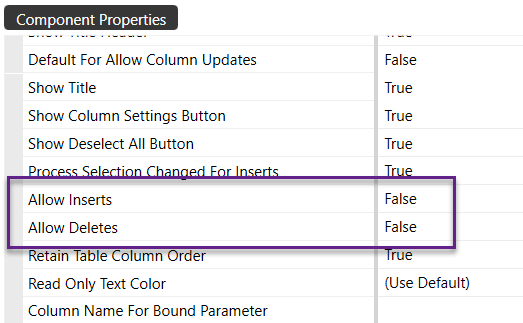

Table Creation Group for Ancillary Tables
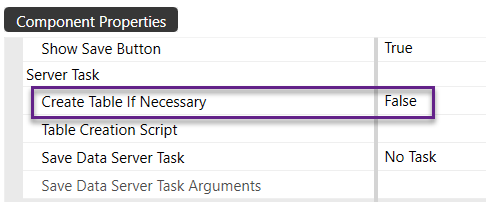
The Table Creation Group for Ancillary Tables is required to enable the Create Table If Necessary functionality found in the SQL Table Editor.
Administrators Group Segregation for the OneStream Database Server
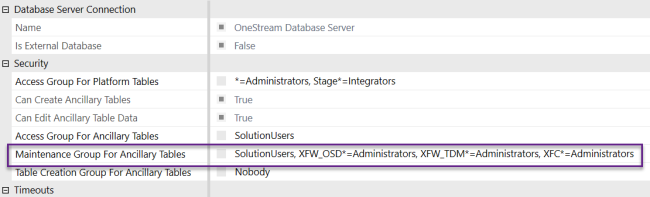
By default, the OneStream Administrators security group does not have access to Database Server Security properties. OneStream environments include Solution Exchange solutions used by Administrators that require ongoing maintenance. To restrict access to Ancillary Tables used by these solutions, use nested groups, a delimited list, or wildcard methods.
Examples of Minimal Provisioning for Pre-Configured Solutions
- OneStream System Diagnostics (OSD): XFW_OSD* tables as XFW_OSD*=Administrators
- OneStream Table Data Manager (TDM): XFW_TDM* tables as XFW_TDM*=Administrators
- XFC* tables as XFC*=Administrators: CustomName* tables as Prefix*=Administrators
Administrator Ancillary Table Access OSD or TDM Example
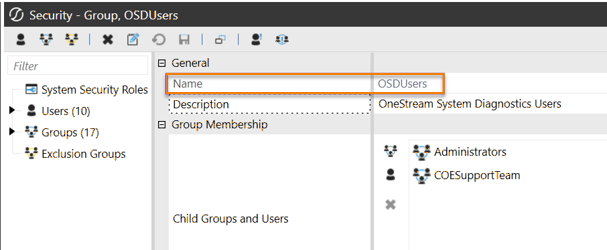
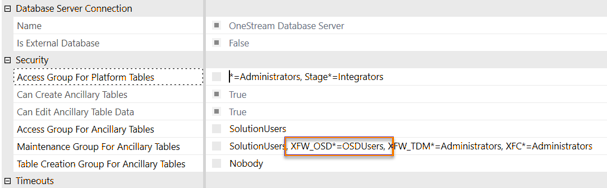
Nested Group Ancillary Table Access Example
How To Provision Rights to the System Configuration Page
Limit access to the System Configuration Page to full OneStream Administrators because changes on this page can affect the OneStreamenvironment.
-
Navigate to the System tab
-
Select System Security Roles
-
Provision full OneStream Administrator to System Configuration Page
-
System Security Roles – ManageSystemConfiguration
-
-
Provision non-full OneStream Administrators to System Configuration Page
-
System Security Roles – ManageSystemConfiguration, to enable editing
-
System User Interface Roles – SystemPane
-
System User Interface Roles – SystemConfigurationPage
Administer Database
-
-
Users provisioned for the Administer Database feature in the Database Page have unrestricted access to Platform and Ancillary tables, which override Database Server security properties see Database Administration.

